
Delimit - Support FAQs
The following are frequent questions sent to our support.
If you have a different question regarding Delimit or an issue please send it in: New Ticket
 General
Does Delimit have a file size limit?
Yes, but the limit is very high. Delimit can handle delimited text files up to 2 billion rows and 2 million columns large. That said, larger files will take longer to process and will require more RAM memory to complete, particularly with operations like file sort.
Yes, the trial version of Delimit and the paid version of Delimit are functionally the same. The trial version, throughout the trial period, has all the features and functions of the paid version. Once the trial expires and if you do not purchase a license, Delimit will downgrade to Delimit Lite which is limited in functionality compared to the paid version.
No, .xlsx files are not supported, Delimit works with text files such as CSV files (*.csv), TAB delimited files (*.tab) and fixed column width files (*.txt), to name a few. CSV files are really just text files. So if you work with CSV files then you will be able to open and save them in both Delimit and other programs. Note that Delimit can handle much larger CSV files; up to 2 billion rows and 2 million columns large.
No, Delimit does not run natively on the Apple Mac OS, Delimit runs on the Windows OS. You can run Delimit on a Mac using VMware Fusion for Mac, Parallels Desktop for Mac or Boot Camp, but keep in mind that you will need Windows OS installed on your choice of the three.
Purchasing and Licensing
Do you offer permanent (perpetual) licenses, that do not expire?
Yes, occasionally. You can go to our pricing page to see if such are currently on offer. That said, our primary license model is subscription based.
Yes. Our subscription based licenses which are tied to a Monthly or Yearly Plan, automatically renew until canceled. Canceling a subscription means canceling your Plan's next auto renewal and rebill date. At any time, you can cancel your Monthly or Yearly Plan yourself, via the 'Manage Your Order' link provided on your receipt or you can contact our sales and we will do this for you.
If you prefer not to have automatic renewal, you can purchase a fixed term license, typically valid for one year after which the license expires. Please contact our sales for further information regarding fixed term licenses.
If you prefer not to have automatic renewal, you can purchase a fixed term license, typically valid for one year after which the license expires. Please contact our sales for further information regarding fixed term licenses.
Yes, with certain limitations. Fixed term licenses do not automatically renew, once purchased and activated they are valid for a certain duration, like two or three years, after which they expire. Delimit will then downgrade to 'Lite' edition with limited functionality. Please contact our sales with your requirement and we will get back to you.
Yes. A 30-day money back guarantee is offered on Yearly Plans, provided such were not subject to any credits, and on Permanent Licenses when the latter are available. Should you find Delimit not suitable to your needs, just contact us and submit a ticket, within 30 days of your purchase, and request a refund.
Yes, you can transfer your license to another computer but you first need to deactivate your license from your current computer. Once deactivated you can activate your license on another computer. The remaining time on your license will not change. If you no longer have access to your old computer please contact us for additional support.
You can activate your license key using your smartphone via a QR code, using a 2nd computer that has Internet access or by contacting us. Please follow the instructions in our User Guide, under Offline Activation. If you need further assistance please contact us.
Go to our License Self Help page and select 'Get License Information'.
Go to our License Self Help page and select 'Email License Keys'.
Issues and Errors
All functions are grayed-out in Delimit, how do I enable the functions?
There are several possible reasons why buttons and their functions end up grayed-out or disabled:
1. If you have edited or modified the file, you first need to save the file after which the functions will be enabled again. You can also close the file (without saving) and reopen it.
2. Upon opening a file, Delimit must complete a full file scan before all functions become enabled. If file scan is still running (or if it has paused) the functions will be grayed-out/disabled until the scan completes. Allow the full scan to complete (by un-pausing the scan if necessary) upon which the buttons will become enabled.
3. When opening a file, if Delimit detects certain unsupported and/or non-displayable characters (like NULL characters) in the file, Delimit will prompt you to have these replaced by another character. If you select not to have such characters replaced then all Delimit functions will be grayed-out or disabled.
1. If you have edited or modified the file, you first need to save the file after which the functions will be enabled again. You can also close the file (without saving) and reopen it.
2. Upon opening a file, Delimit must complete a full file scan before all functions become enabled. If file scan is still running (or if it has paused) the functions will be grayed-out/disabled until the scan completes. Allow the full scan to complete (by un-pausing the scan if necessary) upon which the buttons will become enabled.
3. When opening a file, if Delimit detects certain unsupported and/or non-displayable characters (like NULL characters) in the file, Delimit will prompt you to have these replaced by another character. If you select not to have such characters replaced then all Delimit functions will be grayed-out or disabled.
Delimit can handle very large files, however, on rare occasions, Delimit may stall or even hang due to one of the following three reasons:
1. Your PC may not have enough RAM memory for Delimit to complete the operation. You can check by opening Task Manager, and by clicking on Performance and Memory. Then run the function in Delimit which causes the stall and see if your memory usage hits or approaches max. If so, you would need to add more memory to your PC or use a PC with more memory.
2. Your PC may not have enough disk space for Delimit to complete the operation. Verify your available disk space and if it is very low, free up some disk space by deleting unnecessary files.
3. Your file may have errors or corruptions at a particular location of the file which may cause Delimit to stall or hang once it reaches that location. The reason is hard to diagnose without us inspecting the file itself. Please contact us for additional support.
1. Your PC may not have enough RAM memory for Delimit to complete the operation. You can check by opening Task Manager, and by clicking on Performance and Memory. Then run the function in Delimit which causes the stall and see if your memory usage hits or approaches max. If so, you would need to add more memory to your PC or use a PC with more memory.
2. Your PC may not have enough disk space for Delimit to complete the operation. Verify your available disk space and if it is very low, free up some disk space by deleting unnecessary files.
3. Your file may have errors or corruptions at a particular location of the file which may cause Delimit to stall or hang once it reaches that location. The reason is hard to diagnose without us inspecting the file itself. Please contact us for additional support.
You may see this warning message when trying to download our installer: DelimitSetup.exe, and when using Microsoft Edge. Microsoft Edge and Microsoft Defender SmartScreen may block new downloads and their execution, hence the warning message. To circumvent this you can do the following:
1. Mouse over the message to expose the option buttons (a trashcan and a tree-dot button), click on the three-dot button to show a drop-down menu:
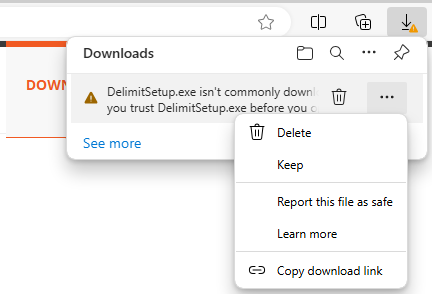
2. Select "Keep"
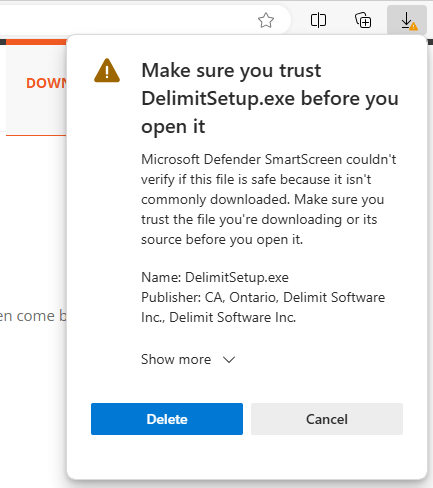
3. MS Edge and MS SmartScreen will likely show another warning, again because the file is new and not commonly downloaded:
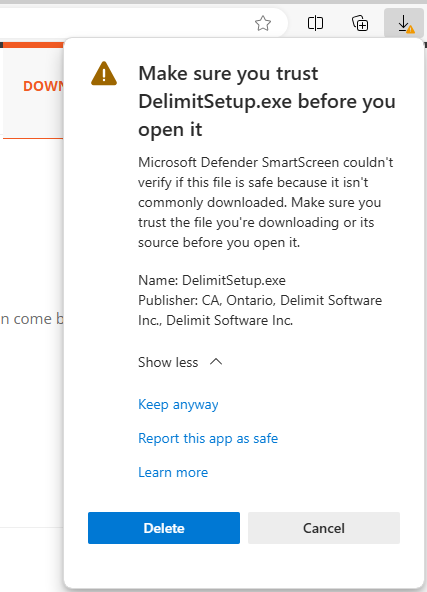
4. Notice the Publisher info. Select "Show more" and then "Keep anyway":
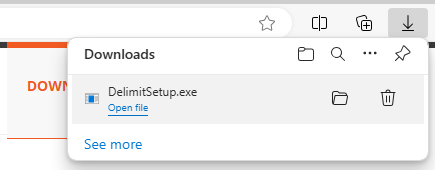
5. Now you can double-click on the downloaded file to run the installer:
6. You may get another warning:
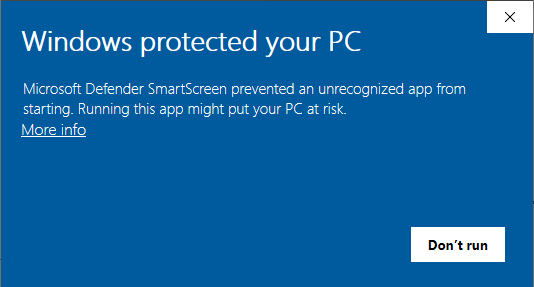
7. Select "More info", notice again the Publisher info:
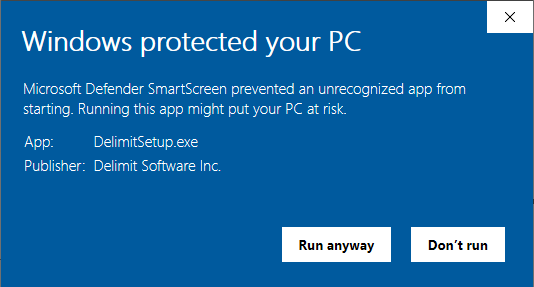
8. Select "Run anyway".
1. Mouse over the message to expose the option buttons (a trashcan and a tree-dot button), click on the three-dot button to show a drop-down menu:
2. Select "Keep"
3. MS Edge and MS SmartScreen will likely show another warning, again because the file is new and not commonly downloaded:
4. Notice the Publisher info. Select "Show more" and then "Keep anyway":
5. Now you can double-click on the downloaded file to run the installer:
6. You may get another warning:
7. Select "More info", notice again the Publisher info:
8. Select "Run anyway".
You may see this warning message when trying to download and/or run our installer: DelimitSetup.exe.
Microsoft Edge and MS Defender SmartScreen may block new downloads and their execution, hence the warning message. To circumvent this you can do the following:
1. Select "More info", notice the Publisher info:
2. Select "Run anyway".
Microsoft Edge and MS Defender SmartScreen may block new downloads and their execution, hence the warning message. To circumvent this you can do the following:
1. Select "More info", notice the Publisher info:
2. Select "Run anyway".
Delimit is not a threat; it is not a virus and it is not malware. Antivirus tools will sometimes flag an exe file such as DelimitSetup.exe or Delimit.exe as a potential threat. This is known as a false positive. Your antivirus may not have enough information on Delimit to flag it as 'no threat'. You can submit the exe file to your antivirus company to do a deep scan and to report back to you whether or not the exe is truly a threat. Then act accordingly.
This error may occur with certain CSV files or with files that use quotation marks as text qualifiers. Your file is likely improperly delimited at a particular location where you have an odd number of quotation marks. Namely, for every open quotation mark there must be a close quotation mark. This is the standard for CSV files and files which use text qualifiers.
When Delimit detects an odd number of quotation marks it has difficulty parsing the file from that point onward and may show this error. To be certain about this we would need to inspect the file in question. Please contact us for additional support.
When Delimit detects an odd number of quotation marks it has difficulty parsing the file from that point onward and may show this error. To be certain about this we would need to inspect the file in question. Please contact us for additional support.
This error can occur if the time on your PC is not accurate. Please do the following:
1. At the bottom right of your Windows desktop is your time, right click on the time and select 'Adjust date/time'.
2. On the Settings window that opens, make sure 'Set time automatically' is On. Then restart Delimit.
1. At the bottom right of your Windows desktop is your time, right click on the time and select 'Adjust date/time'.
2. On the Settings window that opens, make sure 'Set time automatically' is On. Then restart Delimit.
This is likely due to a Windows process or service locking the newly saved or created file for a period of time. Since this lock is at the OS level, Delimit needs to wait until the lock is released before it can continue to work, hence "Not Responding". Some possible culprits are: Windows Indexing service, Microsoft Defender Real-Time Protection or your Antivirus real-time file scanner.
You can resolve this by excluding your work folder from the Windows indexer and/or Defender/AV scanner, try one or more of the following:
Exclude the folder from Windows indexing
1. Open Indexing Options: Press the Windows Key, type Indexing Options, and press Enter.
2. Modify Locations: Click the Modify button at the bottom.
3. Exclude Your Folder:
* Click Show all locations if your folder is not visible.
* Navigate to the folder on drive C where your program runs.
* Uncheck that folder to exclude it from the index.
Alternatively/Additionally:
Disable content indexing for the folder
1. Right-click your work folder.
2. Select Properties > General > Advanced.
3. Uncheck "Allow files in this folder to have contents indexed in addition to file properties".
Exclude the folder from being scanned by Microsoft Defender or your Antivirus software
1. Open Microsoft Defender settings or your Antivirus settings.
2. Add the folder to the exclusion list.
You can resolve this by excluding your work folder from the Windows indexer and/or Defender/AV scanner, try one or more of the following:
Exclude the folder from Windows indexing
1. Open Indexing Options: Press the Windows Key, type Indexing Options, and press Enter.
2. Modify Locations: Click the Modify button at the bottom.
3. Exclude Your Folder:
* Click Show all locations if your folder is not visible.
* Navigate to the folder on drive C where your program runs.
* Uncheck that folder to exclude it from the index.
Alternatively/Additionally:
Disable content indexing for the folder
1. Right-click your work folder.
2. Select Properties > General > Advanced.
3. Uncheck "Allow files in this folder to have contents indexed in addition to file properties".
Exclude the folder from being scanned by Microsoft Defender or your Antivirus software
1. Open Microsoft Defender settings or your Antivirus settings.
2. Add the folder to the exclusion list.
Please see this article for details.